How to Remove Backgrounds From Photos
(Free Apps That Actually Work)
STUDIO TIPS
How to Remove Backgrounds From Photos
Time to read
5 min
Published on
Share
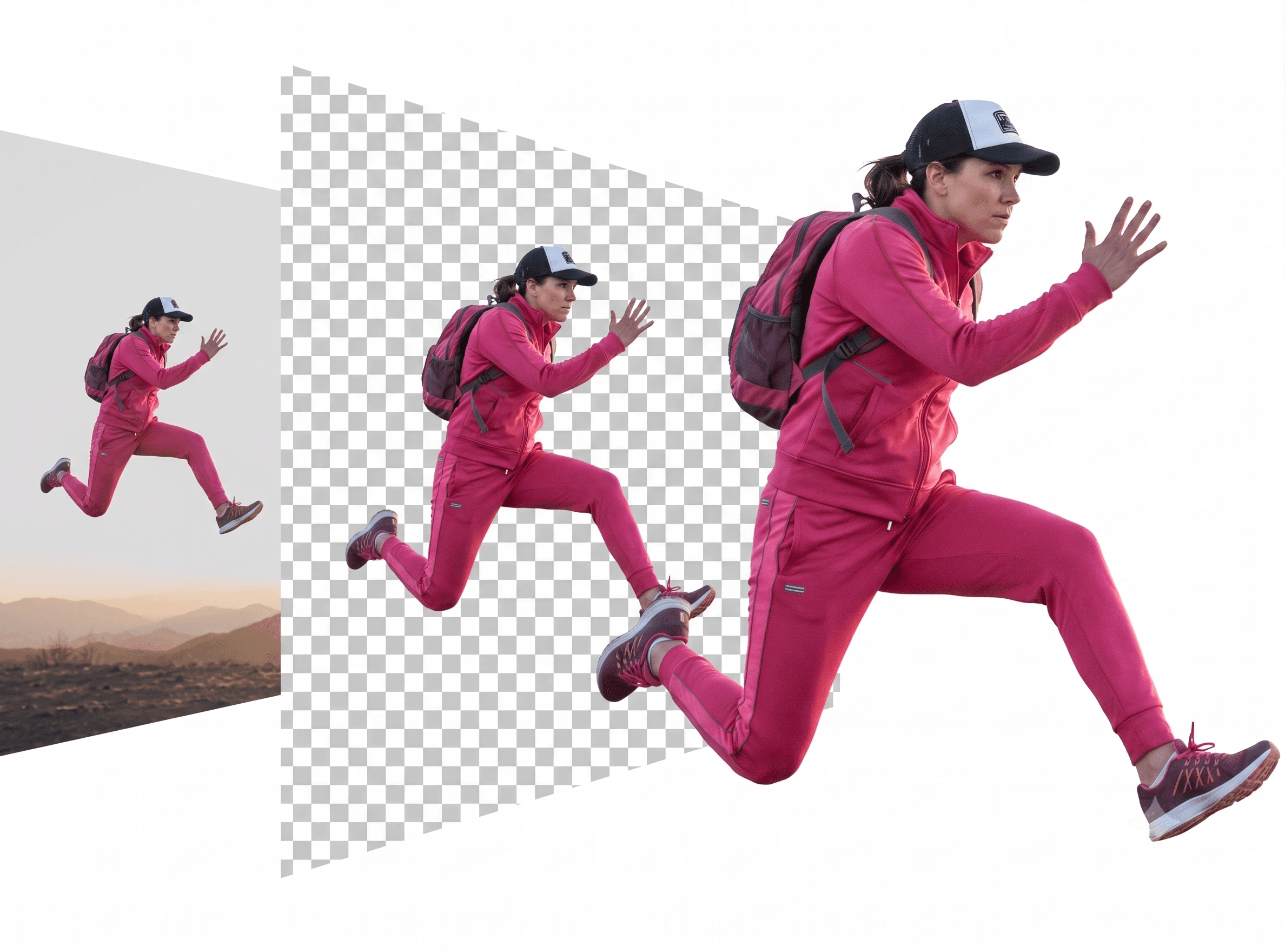
There was a time when removing a background meant either knowing your way round Photoshop's pen tool, or paying someone else to do it for you. Those days are gone - and honestly, good riddance.
Here's what we actually use (and recommend to clients) when a background needs to go.
Why You'd Want To Do This
Product photos - clean white or transparent background
Profile pictures - swap a messy background for your brand colour
Social graphics - pop a cut-out image onto a designed template
Presentations - get rid of distracting clutter behind a headshot
It's one of those small things that makes everything look more "designed" - even if the only thing you did was remove a wall.
The Apps Worth Using
Remove.bg The OG of free background removal. Upload a photo, it spits out a transparent PNG in seconds. Genuinely good for product shots and people - the AI is surprisingly accurate with hair and fine details, which used to be the hardest bit to get right manually.
Best for: quick one-offs, product photography, profile pics Limitation: free tier gives you lower resolution downloads - fine for social, less fine for print.
Canva's Background Remover If you're already in Canva (and if you're a small business, you probably are), this is built right in - Background Remover tool, one click, done. Bonus: you're already in the editor, so you can immediately drop the cut-out onto a template, resize, add text, all in the same place.
Best for: people who want to remove and design in one flow Limitation: part of Canva Pro, though there's often a free trial window
Adobe Express Similar deal to Canva - free background removal tool, no Photoshop required, and if you're already in the Adobe ecosystem it plays nicely with other tools (vectorizing, generative fill, etc.) for when you need to go a step further.
Best for: anyone already using Adobe's free creative tools Limitation: like most "free" tools, premium features sit just behind the free ones.
Built-in Phone Tools Don't underestimate this one. Both iPhone (long-press an image, "Copy Subject" or "Lift Subject") and Android (Google Photos' "Copy to clipboard" subject lift) now do background removal natively, no app needed. It's not always perfect on complex backgrounds, but for a quick Instagram graphic or sticker-style image, it's genuinely fast and free.
Best for: on-the-go, quick social content Limitation: less precise on tricky edges (fly-away hair, transparent objects)
A Few Tips for Better Results
Good lighting in, good cut-out out. The AI struggles more with low-contrast edges (think: dark hair on a dark background).
Simple backgrounds = cleaner results. Busy, textured backgrounds confuse even the best tools.
Check the edges before you use it. Especially for print - zoom in. A slightly fuzzy edge is fine for a story, less fine for a banner.
The Bottom Line
You don't need expensive software or design skills to get a clean cut-out anymore. Pick the tool based on what you're doing next - Canva or Adobe if you're designing straight after, Remove.bg for a fast standalone result, your phone if you're already mid-scroll and need something now.
Want your product shots, headshots, or social content properly styled - not just "background removed" but actually designed? That's the Inkonography™ and design side of what we do.